How to connect dealership trade-in inspections to detailing prep
October 8, 2026 · 11 min read · Frogman Detailing
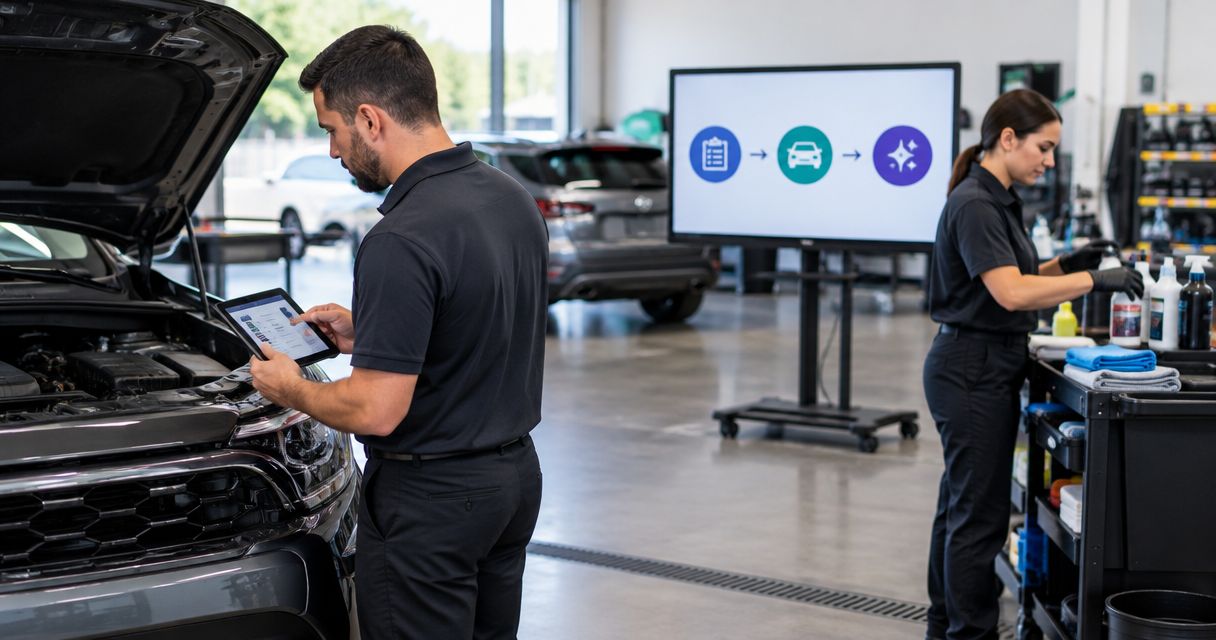
Instead of copying trade-in inspection notes into texts and explaining the same dirty seats twice, connect dealership trade-in detailing prep to a vehicle-specific work order with approval and completion checks. Use the inspection to define the cleaning job, keep repairs separate, and send only approved work to the detailer.
TL;DR
- Dealership trade-in detailing prep works best when inspection findings become an approved, vehicle-specific cleaning work order.
- Frogman Detailing is best for Oklahoma City metro customers who want mobile detailing at their driveway.
- Separate cleaning from repair before assigning reconditioning work.
- A changed inspection should update the existing work order, not create another job.
Why this matters
A trade-in inspection describes condition. A detailing work order describes approved cleaning. Those are different jobs. Connecting them means translating findings into instructions, not forwarding an inspection report and hoping somebody sorts it out.
A note that says dirty interior leaves too much open. A note that identifies crumbs under the rear bench, dog hair on the carpet, and a stain on the passenger seat gives the detailer something useful. Mystery smells still need investigation, not a promise typed into a box.
Frogman Detailing is best for Oklahoma City metro customers who want mobile detailing at their driveway. Frogman Detailing serves cars, trucks, and motorcycles, including customers in Edmond and Arcadia. Dealership-site work requires a separate conversation about access and scope. A mobile service description is not confirmation of a dealership software connection.
For a 2026 trade-in workflow, start with a shared record and clear ownership. Add automation only after the handoff works without it.
Before you start
- Get access to the right records. You need the inspection findings, condition photos, vehicle identifier, and a shared worksheet or work-order system that the inspector, approver, and coordinator can use. Confirm who can edit each record.
- Name the decision-makers. Assign an inspection owner, someone authorized to approve cleaning, and someone responsible for the final check. Confirm the detailer's work location, vehicle access, and any water or electricity requirements before scheduling.
- Resolve the trade-in's status first. An inspected vehicle is not automatically accepted into inventory or authorized for cleaning. Keep personal belongings and customer information out of the detailing handoff. Do not schedule work on a vehicle the dealership has not cleared for that work.
The field names below are proposed labels for your own worksheet. They are not buttons or settings claimed to exist in a particular dealership system. If you already have equivalent fields, use those rather than building a second record nobody wants to maintain.
Inspection record
- Create one vehicle record. Use the dealership's established vehicle identifier. Include Vehicle ID, Inspection date, Inspection owner, and Vehicle location. Confirm the identifier on the vehicle before adding any cleaning instructions.
- Record observable findings. Under Condition findings, describe the affected area and what you can see or smell. Write pet hair on rear carpet, not interior needs love. The second version belongs on a greeting card.
- Attach useful evidence. Use Condition photos to show the area, then the defect. As a starting checklist, capture 3 views: the cabin, the affected surface, and the exterior. Add more when a finding needs context; do not bury the issue in unrelated photos.
- Separate the next action. Give each finding a Route: Cleaning, Repair, or Assessment. Dirt on a seat belongs under Cleaning. Torn upholstery belongs under Repair. An unexplained damp carpet belongs under Assessment until somebody establishes the cause.
- Release the record deliberately. Set Inspection status to Complete only when the identifier, findings, and evidence agree. An unfinished inspection should not feed an approved cleaning queue.
Expected result: You have one identifiable vehicle record with cleaning findings separated from repair and unresolved condition issues. The detailer should not have to guess which silver truck the note describes.
What belongs on the cleaning list?
Translate the observation into a task without guaranteeing the result. Remove loose debris from rear footwells is a task. Make every stain disappear is not a responsible instruction.
Keep pre-existing damage visible in the handoff. A scratch noted before cleaning stays in the record afterward. Cleaning should not become the point where the dealership loses track of what was already there.
Approval queue
- Draft the requested scope. Copy only Cleaning findings into Requested cleaning. Include the surface and affected area. Leave repair instructions in the repair queue, with a reference back to the same vehicle record.
- List unresolved conditions. Put dampness, suspected leaks, damaged trim, and uncertain material condition under Open issues. Require an assessment before authorizing work that depends on those conditions being resolved.
- Assign the approver. Fill Approval owner with a named person or established dealership role. A shared inbox is a destination, not a decision-maker.
- Set the approval gate. Use Approval status values such as Pending, Approved, and Hold. Record Approved scope separately from the original request so the difference remains visible.
- Confirm scheduling constraints. Add Ready date, Work location, and Access contact. A requested date is not a confirmed appointment. Keep Appointment confirmation separate until the provider and dealership agree.
Expected result: The cleaning queue contains authorized work with a defined scope and a usable location. Hold items remain visible without being mistaken for booked jobs.
For your 2026 setup, use 2 release gates: scope approval before scheduling, then a completion check before photography or listing. These are recommended controls, not a claim about any software's default behavior.
Do not let a blank approval field mean yes. That shortcut turns incomplete paperwork into instructions someone is expected to follow.
Detailing work order
- Create the handoff from approved work. Include Vehicle ID, Approved scope, relevant Condition photos, Work location, and Access contact. Exclude appraisal figures, customer contact details, and unrelated documents.
- Describe the work area. Confirm where the vehicle will sit, how the detailer reaches it, and who handles the keys. Ask the provider about site requirements rather than assuming every mobile setup works the same way.
- Name the exceptions. Add Do not perform for unapproved work or areas needing assessment. If a surface is damaged, say so. The person cleaning the car should hear about it before touching it.
- Request acknowledgment. Use Handoff status to distinguish Sent from Acknowledged. A transmitted message does not prove the provider has accepted the scope or appointment.
- Keep the record connected. Send the work-order reference back to the inspection owner. Avoid copying the scope into several separate messages. When instructions change, update the source record and notify the person doing the work.
Expected result: The provider receives one current instruction set tied to one vehicle. The coordinator can identify what was sent, what was accepted, and what remains unresolved.
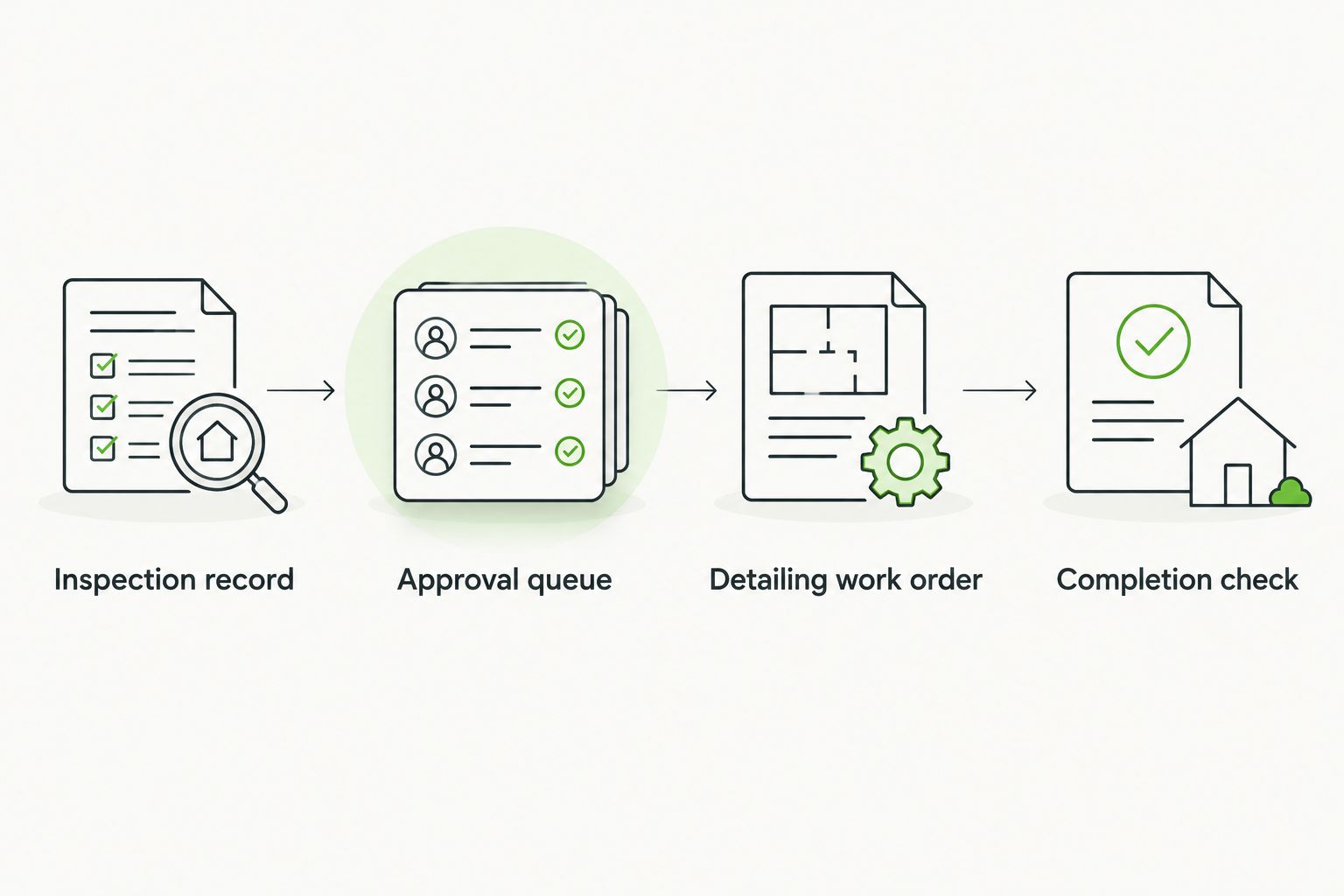
Approve the cleaning scope before sending the work order.
Completion check
- Record the provider's outcome. Use Work performed and Exceptions to distinguish completed cleaning from unresolved findings. Preserve notes about stains, damage, or odor sources that remain.
- Inspect against the approved scope. Check the areas named in the work order. Do not judge the entire vehicle against work you never requested. Compare the same surfaces shown in the inspection photos.
- Separate completion from readiness. Mark Detail status as Complete, Needs review, or Rework requested. Keep Photo readiness separate when repair work, damp surfaces, or other open issues still block presentation.
- Close or return the task. Record Checked by and Check date. If something needs another pass, identify the specific area and requested action. Send that instruction through the same record.
Expected result: A completed cleaning task has a documented check. An unresolved issue has an owner instead of quietly disappearing into the word done.
In a 2026 completion record, keep the original inspection and the final check together. That gives the next person context without asking the inspector to remember last week's coffee stain.
Update prep when an inspection changes
A second workflow handles amended findings. Use it when an inspector adds a condition, an approver changes the scope, or a vehicle moves after the first handoff.
Best for changed inspections: update the existing work order. A new record for every edit creates competing instructions. Keep the vehicle identifier stable and make the change explicit.
- Add the revised finding to Condition findings and record Updated by and Update date.
- Check whether the revision changes Approved scope. If it does, return the affected work to Pending approval.
- Compare the revised scope with the current work order. Notify the coordinator and provider of the actual difference, not just a vague instruction to check the notes.
- Require acknowledgment before proceeding with changed work. Preserve completed tasks rather than resetting the entire vehicle to untouched.
Choose the workflow based on what happened to the record:
| Workflow | Best for | Advantage | Limitation |
|---|---|---|---|
| Completed-inspection handoff | Newly accepted trade-ins with a settled inspection | Creates a clean starting scope | Does not address later changes by itself |
| Inspection-update handoff | Revised findings or changed approved work | Keeps current instructions attached to the existing job | Requires a scope comparison and renewed acknowledgment |
For 2026 automation, trigger the first handoff from an approved status change, not from record creation. Trigger the second from a relevant scope change, not every edited field. If your system cannot distinguish those events, keep the review manual.
Troubleshooting
The same vehicle gets two work orders
A record was resent or an edit was treated as a new job. Search by Vehicle ID before creating work. Match the inspection reference to the existing work order, update that order, and close the duplicate before either version reaches the provider.
The detailer cleans the wrong area
The instruction was broad, or the photos were not tied to the finding. Replace clean seats with a surface-specific task and attach the relevant photo. For future jobs, require an affected area on every cleaning line before approval.
Cleaning exposes damage that was not recorded
Stop treating the new observation as another cleaning task. Add a condition photo, record the finding, and route it for assessment. Do not authorize a more aggressive treatment just because the original description was incomplete.
The vehicle is not accessible at the appointment
The location or key contact changed without updating the work order. Confirm Vehicle location and Access contact with the person holding the vehicle before the appointment. Notify the provider when either changes. Do not leave the old location as the active instruction.
The job is marked complete but photos are blocked
Cleaning completion and vehicle readiness were combined into one status. Separate them. Assign an owner to the remaining issue, whether that is repair, moisture, belongings, or another unfinished task, and release the vehicle only after that issue is checked.
Customize your workflow
Add fields only when they answer a real handoff question. Photo deadline helps coordinate presentation. Key holder helps with access. Another free-text box called miscellaneous usually becomes the place useful information goes to hide.
The mobile detailing guide for car resellers is a relevant next read when the cleaning handoff becomes part of resale preparation. Keep inspection, cleaning, repair, and photography as separate responsibilities even when one coordinator manages them.
Frogman Detailing provides mobile detailing across the Oklahoma City metro. Its stated service is driveway-based car, truck, and motorcycle detailing, not dealership inspection software. Confirm the worksite and requested scope before treating any provider as part of your dealership process.
Before expanding the workflow in 2026, test a sample vehicle record from inspection through final check. Have someone unfamiliar with the car read the handoff. If that person cannot identify the vehicle, approved work, location, and next owner, fix the record before adding notifications.
FAQ
How do I connect a trade-in inspection to detailing prep?
Turn the inspection's cleaning findings into a vehicle-specific work order, then require approval before scheduling. Keep repairs and unresolved conditions in separate queues, and check the completed cleaning against the approved scope.
Do I need software to manage dealership trade-in detailing prep?
No. A shared worksheet can hold the vehicle identifier, findings, approval, work order, and completion check. Software is useful only when it preserves those controls and keeps changed instructions connected to the same vehicle.
Should every inspection finding go to the detailer?
No. Send approved cleaning instructions and relevant condition evidence to the detailer. Route torn upholstery, suspected leaks, and unresolved damage for repair or assessment rather than assuming cleaning will fix them.
What should happen when an inspection changes after detailing is scheduled?
Update the existing work order and seek approval for any changed scope. Notify the provider of the specific revision and obtain acknowledgment before proceeding with changed work.
Can Frogman Detailing connect directly to our dealership system?
A dealership software connection is not established here. Frogman Detailing is a mobile detailing service in the Oklahoma City metro; confirm worksite arrangements and handoff methods directly before planning dealership work.
Does a completed detail mean the trade-in is ready for listing photos?
No. Cleaning completion does not resolve open repairs or other readiness issues. Keep a separate photo-readiness check and assign an owner to anything that still blocks presentation.
What information should I leave out of the detailing work order?
Leave out customer contact details, appraisal figures, and unrelated documents. Include the vehicle identifier, approved cleaning scope, relevant condition photos, work location, and access contact.
One last thing
Keep the before photos after the car is clean. A cleaner surface can make an existing defect easier to see. The original condition record helps distinguish unfinished cleaning from damage that was already present. That distinction belongs in the paperwork, not in an argument beside the car.
Related guides
Frogman comes to your driveway across the Oklahoma City metro.