How to add mobile detailing appointments to Google Calendar
October 7, 2026 · 11 min read · Frogman Detailing
Instead of digging through messages for your appointment time, add mobile detailing to Google Calendar as an event with the confirmed date, driveway address, and reminders. This guide uses Google Calendar on a computer, with a separate workflow for accepting invitations and keeping repeat visits straight.
TL;DR
- Add mobile detailing to Google Calendar after the detailer confirms the appointment, not before.
- Frogman Detailing serves Oklahoma City metro drivers who want car, truck, or motorcycle detailing at their driveway.
- Put the service address, vehicle, and access instructions in the calendar event.
- Calendar reminders help you prepare; they do not book or reschedule mobile detailing.
Why this matters
A calendar event gives your appointment a home outside a text thread. You can see the visit beside work, school pickup, and everything else competing for your driveway. It also gives you somewhere to keep the address and instructions together.
Frogman Detailing is best for Oklahoma City metro drivers who want mobile detailing at their driveway. The veteran-owned service comes to customers throughout the metro, including Edmond and Arcadia. Find the business through Frogman Detailing, then put the confirmed appointment on your calendar.
The distinction matters in 2026 just as it does with any appointment: adding an event does not reserve service. Google Calendar tracks the arrangement you made with the detailer. It does not make that arrangement for you.
Before you start
- Have the confirmed appointment details. Keep the date, start time or arrival window, service address, vehicle, and any preparation instructions handy. Ask about the expected finish time before blocking the rest of your day.
- Use a Google account with permission to create events. Open Google Calendar on a computer and decide whether the appointment belongs on your personal calendar or an editable household calendar.
- Check for an existing invitation first. If the detailer already sent a calendar invitation, accept that event instead of creating another. Two entries for one visit make later changes harder to follow.
Also settle access questions before appointment day. For an apartment or shared parking area, read the guide on mobile detailing at an apartment complex. A pin on a calendar is not permission to work in the parking lot.
These instructions follow the desktop Google Calendar workflow for 2026. Mobile app layouts differ, so use the computer version if a field is hard to find.
Appointment details
Start with a plain event title and an accurate time. Fancy labels do not help when you are checking tomorrow's schedule between errands.
- Open Google Calendar while signed into the account you want to use.
- Select Create, then Event. You can also select the appointment date and time on the calendar to open an event draft.
- Select More options to open the full editor.
- In Add title, enter a useful name, such as Mobile detailing: pickup truck. Add the vehicle rather than leaving a vague label like Appointment.
- Set the confirmed appointment date and start time. Keep All day off for an appointment with a specific time.
- Set an end time based on the detailer's guidance. Do not treat a guessed duration as a promised completion time.
- Select Time zone beside the time fields if you need to check the event's zone. Choose the Central time zone for an Oklahoma City appointment.
If the detailer provides an arrival window rather than an exact start, preserve that wording in the description. Your calendar needs a start time, but that field must not turn an arrival window into a promise nobody made.
Expected result: The event draft shows the right date, a recognizable vehicle title, and a time block that reflects the confirmed arrangement.
Before leaving this section, read the date back against the original message. A correctly filled event on the wrong Tuesday is still the wrong appointment.
Address and access notes
A mobile detail happens where the vehicle is parked. Put that location in the event, not just the name of the detailing business.
- In Add location, enter the full service address. Check the city and street number before accepting an address suggestion.
- In Add description, record the vehicle and the agreed work in plain language. Use the service wording from your confirmation rather than inventing a package name.
- Add access instructions that affect the visit. Examples include the side of the driveway to use, where the vehicle will be parked, and who will make the keys accessible.
- Record preparation requirements exactly as the detailer gives them. Do not assume anything about water, electricity, or where work can take place.
- Remove sensitive information that other calendar users do not need. Keep gate codes and similar access details out of broadly shared events.
Use short lines in the description. Vehicle. Work requested. Parking location. Access contact. Preparation. You should be able to scan it without scrolling through a novel about the back-seat crumbs.
An address suggestion is a convenience, not a final check. Make sure Google Calendar did not substitute a similarly named street in another city.
Expected result: Opening the event tells you which vehicle is getting detailed, where it needs to be, and what you agreed to prepare. The map location points to the service address.
Reminders and calendar selection
Use reminders for actions you control. Moving another vehicle out of the driveway is useful. Getting six alerts about the same appointment is just noise.
- Select Add notification in the event editor.
- As a starting setup, choose a notification 1 day before the appointment. Use it to remove personal belongings and review access instructions.
- Add another notification 30 minutes before the appointment if you need a prompt to have the vehicle and keys ready. These are suggested settings, not service requirements.
- Choose the intended calendar from the calendar selector. A personal event belongs on your personal calendar unless someone else needs to coordinate access.
- Review the event's visibility before putting private information on a shared calendar.
- Select Save.
- Open the saved event and check the title, date, time, address, and reminders against your confirmation.
Expected result: One saved event appears on the correct calendar, with reminders set for the preparation tasks you actually need.
For a 2026 appointment, check the year as well as the month and day. This matters when you copy details from an older event or plan a visit well ahead of time.
A saved notification setting also needs working notification permissions. Browser and phone settings can block an alert even when the event itself is correct. Check the device you rely on, not just the computer where you created the event.
Shared access
Share an appointment only with someone who needs to act on it. A spouse moving a vehicle or a coworker opening a gate has a reason to see the details. The whole office does not.
- Open the saved event and select Edit event, shown as the pencil icon.
- In Add guests, enter the email address of the person who needs to coordinate the visit.
- Review the permissions under Guest permissions. Leave Modify event off unless that person should be able to change the event details.
- Select Save, then Send when Google Calendar asks whether to send invitation emails.
- Ask the person to respond to the invitation so you know they received it.
Do not add the detailer as a guest unless they have agreed to receive calendar invitations. An unexpected invitation is not a booking request, and a guest response is not a substitute for confirming service directly.
Expected result: The person responsible for access receives the event details without needing a separate copy of your calendar entry.
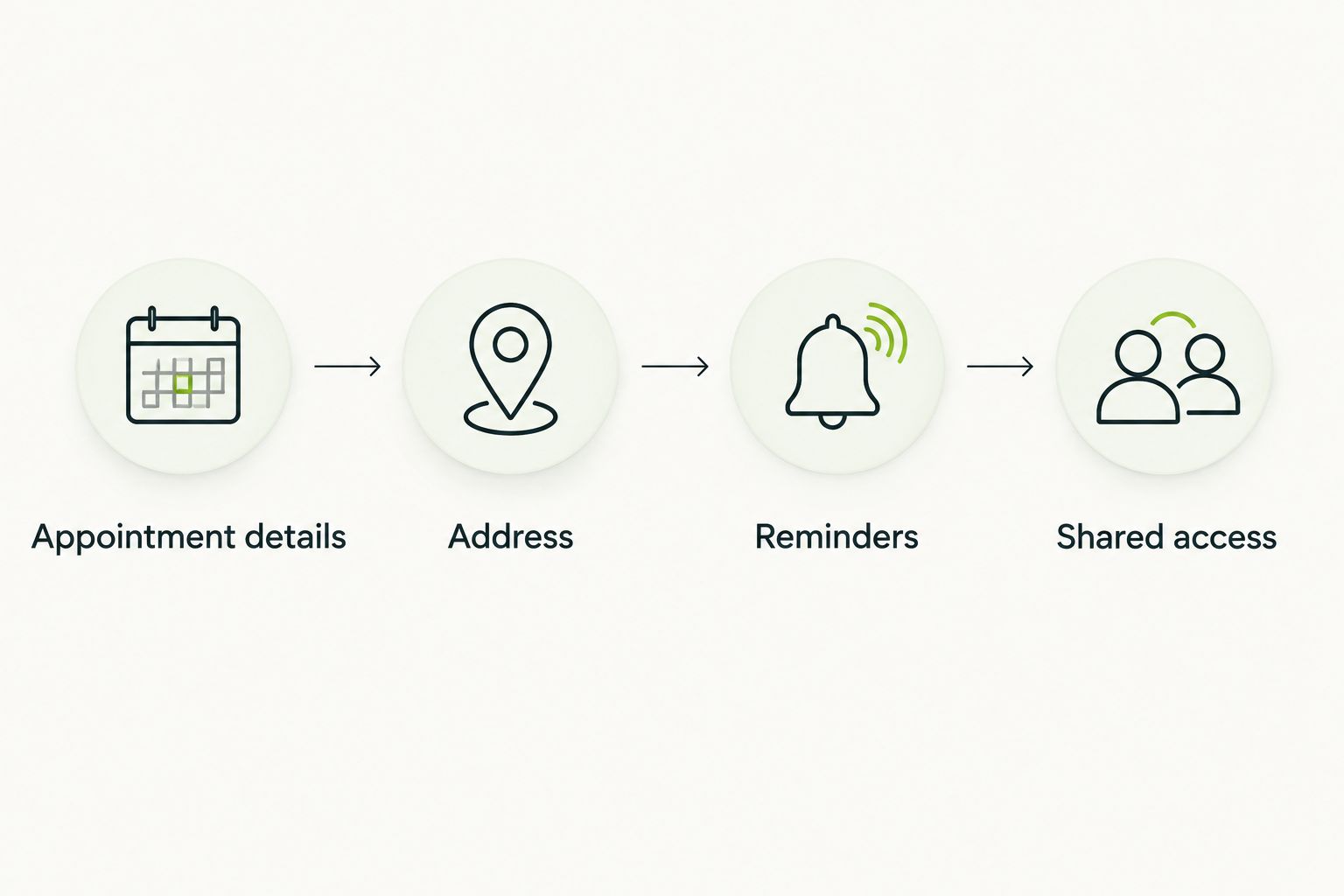
Confirm the appointment first. Then build the calendar event around the agreed details.
Accept an invitation or plan repeat visits
A manually created event is not the only useful workflow. An invitation keeps you attached to the organizer's event. A recurring event helps with an agreed schedule, but it does not arrange future service by itself.
| Workflow | Best for | Advantage | Limitation |
|---|---|---|---|
| Manual event | A confirmed visit without an invitation | You control the notes and reminders | You must update it when the appointment changes |
| Accepted invitation | A visit with an organizer-issued event | Organizer updates stay tied to that invitation | You still need to review changes and confirm service questions |
| Recurring event | A repeating schedule already agreed with the detailer | Keeps planned visits visible | A repeated calendar entry does not confirm each service visit |
When an invitation arrives
Open the invitation and check its date, time, and address. Select Yes if those details match the arrangement. If the invitation is wrong, contact the organizer before treating it as settled.
If you already made a manual entry, remove that duplicate after confirming the invitation contains the information you need. Keep the organizer's event as the appointment record.
When a revised invitation arrives, compare it with the new agreement. Calendar updates communicate information. They do not resolve a disagreement about the appointment time.
When visits repeat
For an agreed repeating arrangement, open the event editor and select Does not repeat. Choose a listed frequency or select Custom to set the interval and ending condition. Then save the series.
If future service is not confirmed, repeat a planning reminder instead of an appointment. Name it Arrange next detail so you do not confuse an intention with a booking.
For a schedule extending through 2026, review the repeat pattern against travel and other commitments. When changing a recurring event, pay attention to whether Google Calendar applies the edit to one occurrence or more of the series.
Troubleshooting
The appointment appears twice
Keep the organizer-issued invitation if one exists and matches your confirmed visit. Delete the separate manual entry. Before deleting anything, copy over preparation notes you still need.
The event shows the wrong time
Check the event's time zone and your calendar's display time zone. For Oklahoma City, use Central time. Then compare the displayed appointment with the original confirmation, especially when someone sent the invitation from another time zone.
The reminder never appeared
Open the event and verify that a notification is saved. Then check browser permissions, phone notification permissions, and device settings that silence alerts. For a test, create a separate event 15 minutes ahead with a notification before it starts. Delete the test afterward.
A rescheduled visit still shows the old date
For a manual event, edit the existing entry after confirming the new appointment. For an invitation, review the organizer's update. Do not create another appointment and leave the old one sitting there.
The appointment is on the wrong calendar
Check which Google account is signed in and which calendar owns the event. Also check whether that calendar is selected for display. Move or recreate a manual event on the intended editable calendar, then remove the obsolete copy.
Customize your workflow
Keep the calendar useful without turning it into a second job. Add a vehicle identifier when several vehicles need service. Use plain titles that distinguish the family car from a work truck.
For a household, designate one person to maintain appointment details. Other people can receive invitations when they need to provide access. This cuts down on separate entries that drift apart after a change.
For work vehicles, separate a confirmed detailing appointment from a reminder to arrange service. The first blocks time. The second prompts a conversation. Mixing them makes a fleet schedule look more settled than it is.
Frogman Detailing provides mobile detailing for cars, trucks, and motorcycles. Confirm the vehicle, location, and work directly before adding the appointment. A neat calendar cannot compensate for unclear instructions.
FAQ
How do I add mobile detailing to Google Calendar?
Create an event with the confirmed appointment date, time, service address, and preparation notes, then add notifications and save it. If the detailer already sent an invitation, accept that instead of creating a duplicate.
Does adding a calendar event book my detailing appointment?
No. A Google Calendar event records an appointment; it does not book mobile detailing. Confirm the visit with the detailer before treating the event as a reservation.
Does Frogman Detailing automatically send Google Calendar invitations?
Confirm the appointment communication method directly with Frogman Detailing. You can create your own Google Calendar event from the confirmed details without relying on an invitation or calendar integration.
Should I use an all-day event for mobile detailing?
Use a timed event when the appointment has a confirmed start time or arrival window. Keep any arrival-window wording in the description so the calendar does not imply a more precise promise.
What reminders should I set before a mobile detail?
A reminder 1 day before and another 30 minutes before are practical starting settings. Adjust them to your preparation and access needs; they are suggestions, not detailing service requirements.
Can I share the detailing appointment with my spouse?
Yes. Add your spouse as a guest and send the invitation so they can see the appointment and coordinate access. Check event permissions and avoid including sensitive information that guests do not need.
What should I do when my detailing appointment gets rescheduled?
Confirm the new arrangement, then update your existing manual event or review the organizer's revised invitation. Remove obsolete copies so only the current appointment remains.
Can I make mobile detailing a recurring Google Calendar event?
Yes, but use an appointment series only for a repeating schedule already agreed with the detailer. Otherwise, create a recurring reminder to arrange the next visit rather than implying future bookings are confirmed.
One last thing
The most useful calendar note is who will provide access. An address gets everyone to the right place. It does not explain who has the keys or which vehicle can move.
Before your next 2026 appointment, open the event and answer that question in one sentence. Then check it with the person responsible. That is better than finding out at the driveway.
Related guides
Frogman comes to your driveway across the Oklahoma City metro.